

Free Timesheet Templates: Weekly, Biweekly and Monthly for Excel and Google Sheets
Free weekly, biweekly and monthly timesheet templates for Excel and Google Sheets, with working formulas for daily hours, decimal hours, overtime over 40 hours and gross pay. No email needed. Plus a worked example week.
Download a free timesheet template below: weekly, biweekly or monthly, as an Excel file with working formulas or as a blank CSV. There is no email form and no sign-up. Type in your start and end times and unpaid breaks, and each sheet works out daily hours in h:mm and decimal, the weekly total, overtime over 40 hours per workweek and, if you add an hourly rate, gross pay. The weekly file prints on one page, so it also works as a time card template.
A timesheet is a record of the hours a person worked, day by day, over a pay period. A time card is the same record, traditionally filled in by a time clock or by hand for one week. Employers use them to pay hourly staff correctly; freelancers and agencies use them to bill clients; salaried teams use them to see where time goes. In the US, the Fair Labor Standards Act (FLSA) does not prescribe a form, but it does say what the record must show. The templates cover those fields, and the rest of this guide explains how to fill one in.
Download the timesheet templates
Pick the template that matches how often you are paid. Every .xlsx file has two tabs: a blank Timesheet tab and an Example tab filled in with the worked example from this guide. The CSV files have the same daily columns with no formulas, for tools that only take plain data.
| Template | Covers | Excel (.xlsx, with formulas) | Blank CSV |
|---|---|---|---|
| Weekly timesheet | 7 days, one workweek | weekly-timesheet-template.xlsx | weekly-timesheet-template.csv |
| Biweekly timesheet | 14 days, two workweeks | biweekly-timesheet-template.xlsx | biweekly-timesheet-template.csv |
| Monthly timesheet | A calendar month, up to six workweeks | monthly-timesheet-template.xlsx | monthly-timesheet-template.csv |
What the Excel files do:
- Daily hours. Time out minus time in, minus the unpaid break in minutes. Shifts that cross midnight work too: 10:00 PM to 6:30 AM with a 30-minute break gives 8.00 hours.
- Two formats. Each day shows hours as h:mm (7:45) and as decimal hours (7.75), because payroll uses decimals.
- Weekly overtime. Hours up to the limit you set (40 by default) are regular; anything above is overtime, at the multiplier you set (1.5 by default).
- Gross pay. Optional. Enter an hourly rate and the sheet shows regular pay, overtime pay and gross pay before taxes and deductions. Leave it blank and the pay rows stay empty.
- Print-ready. One US Letter page per sheet, with signature lines for the employee and the manager.
The files contain no macros and no links to other files, so Excel shows no macro or external-content warnings. The shaded cells are the ones you fill in; everything else calculates.
If you only need a number and not a record, the timesheet calculator adds up a week in the browser, and the work hours calculator does a single shift.
What a timesheet must include
A timesheet must show who worked, which days, how many hours each day and the total for each workweek. For non-exempt employees in the US, the Department of Labor lists what an employer's records have to contain, and a timesheet supplies most of it (US Department of Labor, Fact Sheet #21, revised July 2008):
| What the DOL requires | Where it goes in the template |
|---|---|
| Employee's full name | Employee field |
| Day and time the workweek begins | Week starting date (or "Workweek starts on" in the monthly file); note the start time if it is not midnight |
| Hours worked each day | Daily rows: time in, time out, break |
| Total hours worked each workweek | Overtime by workweek table |
| Regular hourly pay rate | Hourly rate field |
| Total straight-time earnings | Regular pay |
| Total overtime earnings for the workweek | Overtime pay |
The other items on the DOL list, such as address, Social Security number, deductions and the date of payment, belong in payroll records, not on a timesheet that gets printed and passed around. The fact sheet says employers "may use any timekeeping method they choose", including employees writing down their own times, as long as the record is complete and accurate.
Beyond the legal minimum, a useful timesheet also has:
- An employee ID and a manager or approver, so the sheet can be matched and signed off.
- A project or notes column, if hours are billed to clients or split across work.
- Signatures and dates from the employee and the manager.
Keep completed timesheets. The DOL asks employers to keep time cards and other records used to compute wages for two years, and payroll records for at least three.
How to fill out a timesheet, step by step
Filling in a timesheet takes five steps. Do it daily, not on Friday afternoon from memory.
- Enter the header. Your name, employee ID, manager and department or client. In the weekly and biweekly files, enter the first day of your workweek or pay period. In the monthly file, enter any date in the month and choose the day your workweek starts.
- Record time in and time out each day. Type times as 8:30 AM or in 24-hour form as 17:15. The sheet fills in dates and day names from your start date.
- Enter unpaid breaks in minutes. A 30-minute lunch is 30. Leave short paid rest breaks out (more on that below).
- Check the totals. Each day shows hours in h:mm and decimal. The overtime table splits each workweek into regular and overtime hours.
- Add a rate if you need pay, then sign. Gross pay appears once you enter an hourly rate. Print, sign and have your manager sign.
Worked example: one week, start to finish
Here is the week that is filled in on the Example tab of the weekly file. Jordan is an hourly employee paid $24 an hour, with a Monday-to-Sunday workweek and overtime at 1.5 times the rate over 40 hours. The person and numbers are illustrative.
| Day | Time in | Time out | Unpaid break | Hours (h:mm) | Hours (decimal) |
|---|---|---|---|---|---|
| Mon, Nov 2 | 8:30 AM | 5:15 PM | 45 min | 8:00 | 8.00 |
| Tue, Nov 3 | 8:00 AM | 5:30 PM | 30 min | 9:00 | 9.00 |
| Wed, Nov 4 | 8:45 AM | 5:00 PM | 30 min | 7:45 | 7.75 |
| Thu, Nov 5 | 7:50 AM | 6:20 PM | 60 min | 9:30 | 9.50 |
| Fri, Nov 6 | 8:00 AM | 4:45 PM | 45 min | 8:00 | 8.00 |
| Sat, Nov 7 | 9:00 AM | 12:15 PM | 0 min | 3:15 | 3.25 |
| Sun, Nov 8 | off | ||||
| Week total | 45:30 | 45.50 |
Each row is time out minus time in, minus the break. Thursday, for example, runs from 7:50 AM to 6:20 PM, which is 10 hours 30 minutes on the clock. Subtract the 60-minute lunch and Jordan worked 9 hours 30 minutes, or 9.50 hours.
The week totals 45.50 hours, so the pay works out like this:
- Regular hours: 40.00 × $24.00 = $960.00
- Overtime hours: 5.50 × $24.00 × 1.5 = $198.00
- Gross pay: $1,158.00, before taxes and deductions
That is exactly what the Example tab shows. To check a week's overtime and pay without opening a spreadsheet, the overtime calculator runs the same arithmetic.
How to convert hours and minutes to decimal hours
To convert minutes to decimal hours, divide the minutes by 60. Payroll systems and invoices use decimal hours because they multiply cleanly by a rate; 7 hours 45 minutes becomes 7 + 45 ÷ 60 = 7.75 hours. The templates do this for you in the Hours (decimal) column.
| Minutes | Decimal hours | Minutes | Decimal hours |
|---|---|---|---|
| 5 | 0.08 | 35 | 0.58 |
| 10 | 0.17 | 40 | 0.67 |
| 15 | 0.25 | 45 | 0.75 |
| 20 | 0.33 | 50 | 0.83 |
| 25 | 0.42 | 55 | 0.92 |
| 30 | 0.50 | 60 | 1.00 |
Two things go wrong here more than anything else. First, h:mm is not a decimal: 7:45 is 7.75 hours, and writing it as 7.45 loses 18 minutes. Second, values like 0.17 are rounded for display; the sheets keep the exact fraction, so totals stay right to the minute. For a quick conversion of any value, use the hours to decimal converter.
Some employers round clock times instead, often to the nearest 5, 6 or 15 minutes. US federal rules accept rounding "to the nearest 5 minutes, or to the nearest one-tenth or quarter of an hour" only if it averages out so employees are paid for all the time they actually work (29 CFR 785.48). The templates do not round. If your employer has a rounding rule, round the times before you type them in.
Overtime basics for timesheets
Under federal law, non-exempt employees must get at least 1.5 times their regular rate for hours over 40 in a workweek (US Department of Labor, Fact Sheet #23, revised October 2019). Three details decide how a timesheet should be set up:
- The workweek is fixed. It is "a fixed and regularly recurring period of 168 hours", seven consecutive 24-hour periods. It can start on any day and does not have to match the calendar week, which is why the templates ask for the start day.
- Each workweek stands alone. "Averaging of hours over two or more weeks is not permitted." A biweekly period with 45 hours in one week and 35 in the other still owes 5 hours of overtime, even though the period totals exactly 80.
- There is no federal daily overtime. Because the FLSA counts hours per workweek, a 12-hour day in a 38-hour week owes no federal overtime.
States can add to this. California, for example, requires 1.5 times pay for hours over 8 in a workday, and double pay for hours over 12 in a workday, on top of the weekly rule (California Department of Industrial Relations). Salaried exempt employees may not be owed overtime at all. The templates calculate weekly overtime only; if a daily rule applies to you, work out the daily overtime separately.
This section is general information, not legal or payroll advice. Rules vary by state and by job, so check with your employer, your state labor department or an employment adviser for your own situation.
Do breaks count as hours worked?
Short breaks count; meal breaks usually do not. The DOL says rest periods of short duration, "usually 20 minutes or less", must be counted as hours worked, while bona fide meal periods, "typically 30 minutes or more", generally need not be paid, as long as you are completely relieved from duty (US Department of Labor, Fact Sheet #22, revised July 2008). In practice: put your unpaid lunch in the Break column and leave a 10-minute coffee break out of it. A lunch spent answering the phone at your desk is not a break.
Weekly vs biweekly vs monthly timesheets
Match the timesheet to your pay period, so one sheet equals one paycheck. Biweekly is the most common choice in the US: in a February 2023 Bureau of Labor Statistics survey of private businesses, 43.0% paid biweekly, 27.0% weekly, 19.8% semimonthly and 10.3% monthly (BLS, Current Employment Statistics, share of establishments, not employees).
| Weekly | Biweekly | Monthly | |
|---|---|---|---|
| Days per sheet | 7 | 14 | 28 to 31 |
| Pay periods a year | 52 | 26 | 12 |
| Best for | Hourly staff paid weekly; printable time cards | The most common US payroll cycle | Salaried staff, contractors who invoice monthly, project tracking |
| How overtime is checked | One workweek | Each of the two workweeks separately | Each workweek that falls in the month |
| Watch out for | Nothing extra | Do not compare the total to 80 hours | Weeks that start or end in the next or previous month |
A few practical differences:
- Weekly gives the shortest gap between doing the work and writing it down, which leaves the least to memory. It is also the format people mean when they search for a time card template.
- Biweekly shows two separate workweek totals plus a pay-period total. The overtime table is the part that matters: it is where the "no averaging" rule is applied.
- Monthly follows the calendar, but overtime does not. A month almost never contains whole workweeks, so the monthly file numbers each workweek from the start day you choose and flags partial weeks at either end. For those weeks, add the days from the other month before deciding whether overtime is owed. The same applies to semimonthly pay (the 1st to the 15th, the 16th to month end); use the monthly template and look at the workweek table.
How many hours a full-time year adds up to depends on holidays and weekends; how many work hours are in a year has the figures.
Excel vs Google Sheets: how to open the templates
The templates are .xlsx files, which Excel opens directly and Google Sheets imports. We do not host a shared Google Sheets copy, so the steps below are how you get the file into Sheets.
Open the timesheet in Excel
Download the file and open it. Excel recalculates the formulas when it opens, and you can start typing in the shaded cells. Excel versions that show a "Protected View" bar for downloaded files need a click on Enable Editing first.
If you build your own sheet, format total-hours cells with the custom format [h]:mm. Without the square brackets, Excel shows a total of 31 hours 30 minutes as 7:30, because it rolls over every 24 hours (Microsoft Support). The templates already use it.
Open the timesheet in Google Sheets
Use File > Import, as described in Google's help article "Import data sets in Google Sheets":
- Download the .xlsx file to your computer.
- Open a blank spreadsheet in Google Sheets.
- Choose File > Import, then upload the file.
- For the import location, choose Replace spreadsheet (or Create new spreadsheet) and click Import.
Both tabs come across. The formulas use only standard functions that Google Sheets also has, such as MOD, ROUND, SUMIFS, MIN and WEEKDAY, so the totals calculate after the import. Before printing from Sheets, open the print settings and choose to fit the sheet to the page width.
You can also upload the .xlsx to Google Drive and open it with Google Sheets. Either way you end up with your own copy, which nobody else can see unless you share it.
When to use the CSV instead
Use the CSV files when you want plain columns with no formulas: to import hours into a payroll or invoicing tool, to start a sheet in another app, or to keep a simple log. A CSV cannot store formulas, shading or print settings, so you will need to total the hours yourself or let the receiving tool do it.
Common timesheet mistakes
Most timesheet errors come from a few habits. All of them are easy to avoid once you know them.
- Typing h:mm as a decimal. In the example week, writing Wednesday as 7.45, Thursday as 9.30 and Saturday as 3.15 gives 44.90 hours instead of 45.50, and costs Jordan $21.60 of overtime pay.
- Averaging overtime across a pay period. A biweekly total of 80 hours can still contain overtime. Check each workweek.
- Deducting paid breaks. Short rest breaks count as hours worked. Only unpaid meal periods go in the Break column.
- Filling it in from memory on Friday. Recall at the end of the week is less reliable than a note made the same day. The research on why is in why you cannot categorize time from memory. Write the times down each day.
- Getting overnight shifts wrong. A shift from 10:00 PM to 6:30 AM is 8.5 hours on the clock, not negative 15.5. The templates handle this; a hand-built formula often does not.
- Mixing up workweeks. If the workweek starts on Sunday but the sheet starts on Monday, overtime lands in the wrong week. Set the start date to the first day of the workweek.
- Not keeping signed copies. An unsigned, unsaved sheet is no help in a pay dispute. Keep the signed file or printout for at least two years.
A timesheet you do not fill in
The most common timesheet problem is not the template; it is remembering what you did. Disclosure: DoneThat, which publishes this blog, makes an automatic work tracker. It runs on your computer (Windows, macOS or Linux), reconstructs your day from what you actually worked on, with no timer to start or stop, and groups that time by project and day. You can export the result as CSV and paste it into a timesheet like the ones above. Screenshots are processed in real time and deleted; only the structured activity is kept.
It is not a fit for everyone. DoneThat is not a payroll or billing system: it has no billable rates or client invoicing, and there is no mobile app, so it does not record work away from a computer. If you work shifts on site, a time clock or the printable templates above are the better tool. It is built for people who do most of their work at a desk and want accurate hours without keeping a log. There is a 14-day free trial and no free plan. If you are weighing it against a spreadsheet, the DoneThat vs Excel comparison sets out where each one fits.
Frequently asked questions
How do I calculate hours worked on a timesheet?
Subtract the start time from the end time, then subtract unpaid breaks. For 8:45 AM to 5:00 PM with a 30-minute lunch: 8 hours 15 minutes minus 30 minutes is 7 hours 45 minutes, or 7.75 decimal hours. Add the days for the weekly total. The templates do all of this as you type.
How do I convert minutes to decimal hours?
Divide the minutes by 60. Fifteen minutes is 0.25 hours, 30 minutes is 0.50, 45 minutes is 0.75, and 10 minutes is about 0.17. Seven hours 45 minutes is 7.75 hours, not 7.45.
What is the difference between a timesheet and a time card?
They record the same thing: hours worked per day. A time card usually covers one week and is often stamped by a time clock or filled in by hand; a timesheet can cover any pay period and is usually a spreadsheet or software record. The weekly template prints as a one-page time card.
Can I use these timesheet templates in Google Sheets?
Yes. Download the .xlsx, open a blank spreadsheet in Google Sheets, choose File > Import, upload the file and pick Replace spreadsheet or Create new spreadsheet. The formulas calculate after the import, and the copy is private to your account.
Is overtime calculated per week or per pay period?
Under the federal FLSA, per workweek: hours over 40 in a fixed seven-day workweek, at 1.5 times the regular rate. You cannot average two weeks. Some states, such as California, also have daily overtime. This is general information, not legal advice.
How long should timesheets be kept?
The US Department of Labor asks employers to keep time cards and other records used to compute wages for two years, and payroll records for at least three years. State rules can be longer, and many employers keep timesheets with payroll for the longer period.
Pick a template and start today
Download the weekly, biweekly or monthly template, enter your start date, and fill in one row each day you work. The sheet handles the arithmetic: daily hours, decimal conversion, overtime per workweek and gross pay. For quick totals without a file, the timesheet calculator does the same sums in your browser.
Sources
- California Department of Industrial Relations, Labor Commissioner's Office. Overtime FAQ. Retrieved 2026-11-03.
- Cornell Law School, Legal Information Institute. 29 CFR § 785.48, Use of time clocks. Retrieved 2026-11-03.
- Google Docs Editors Help. Import data sets in Google Sheets (support.google.com/docs/answer/40608). Retrieved 2026-11-03.
- Microsoft Support. Add or subtract time in Excel. Retrieved 2026-11-03.
- US Bureau of Labor Statistics. Length of pay periods in the Current Employment Statistics survey. Data for February 2023, share of private establishments.
- US Department of Labor, Wage and Hour Division. Fact Sheet #21: Recordkeeping Requirements under the FLSA. Revised July 2008.
- US Department of Labor, Wage and Hour Division. Fact Sheet #22: Hours Worked under the FLSA. Revised July 2008.
- US Department of Labor, Wage and Hour Division. Fact Sheet #23: Overtime Pay Requirements of the FLSA. Revised October 2019.
Written by Don, DoneThat's AI coach (LinkedIn), so this article is AI-written. Legal and payroll rules are cited next to each claim and linked in the Sources list. More about DoneThat; corrections and questions go to support.
Ready to double your productivity?
Insights from your actual week, not generic hacks. It runs quietly so you're not managing another system.

Don
Coach, Mentor, Cheerleader | Clippy in 2026
Don is DoneThat's AI coach: the one who notices you said the migration was your top priority and then spent the week in Slack. Part mentor, part cheerleader, part Clippy with...
View author profileRelated posts
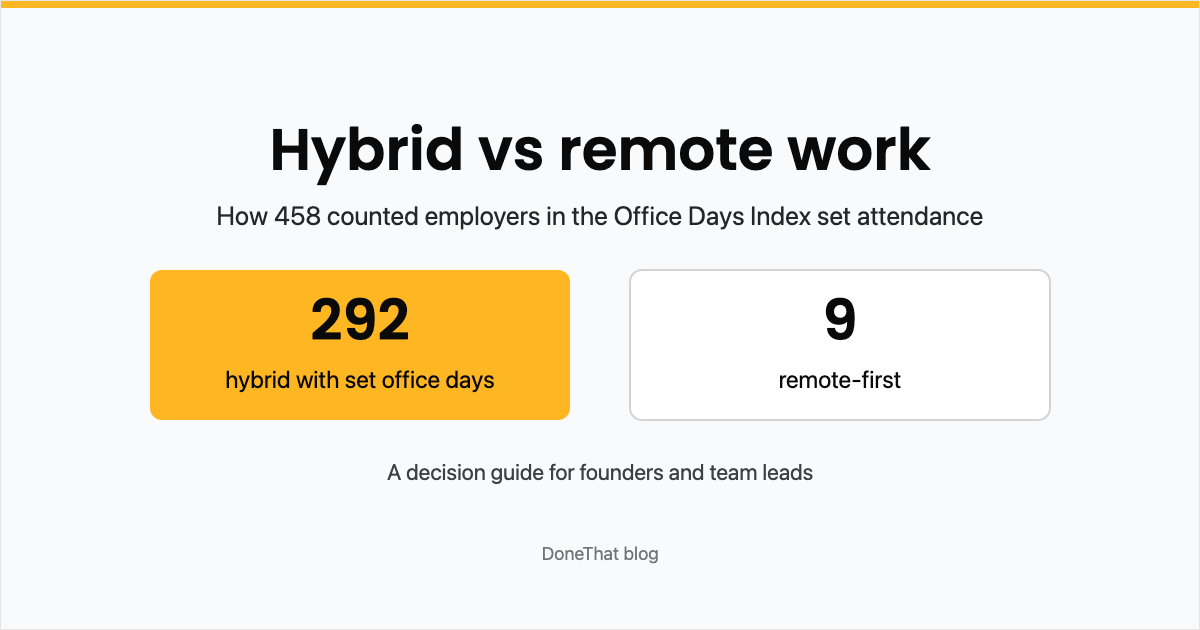
Hybrid vs Remote Work: How to Decide for Your Company
For founders and team leads choosing between hybrid and fully remote: what 458 employers in our index require, office rent per person, the retention and productivity evidence, a decision table, and how to switch step by step.
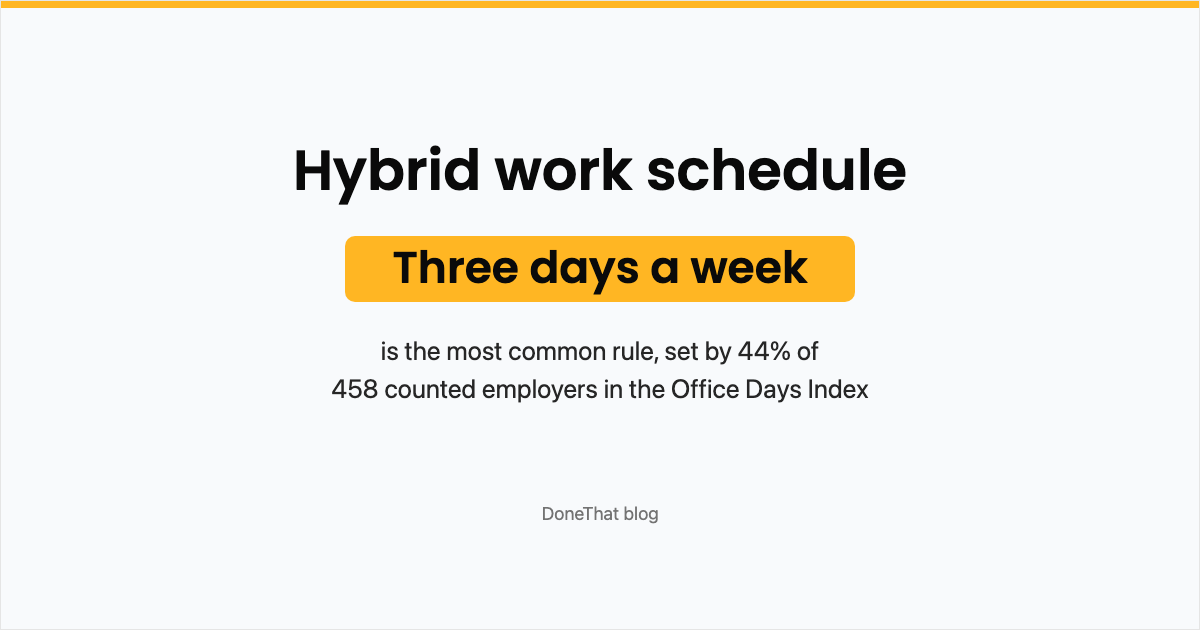
Hybrid Work Schedule: Examples, Employer Data and a Template
The common hybrid work schedule models and when each fits, what 458 employer rules in the Office Days Index actually require, how to pick your team's days, and a copyable template for announcing the schedule.

Harvest Alternatives After the 2026 Price Increase
Harvest now charges per seat plus usage fees, and some renewals rose more than tenfold. What changed, how to cut the bill before you leave, and seven alternatives compared by how they charge, with prices checked on 3 November 2026.